Connect Lattice
Goals + OKRs (Key Results) per employee.
Prerequisites
- Lattice admin with API token access
- A PerfCopilot admin account (the Connect button is only visible to admins)
1. Generate credentials in Lattice
- Sign in to https://app.lattice.com.
- Open Admin → Integrations → API tokens.
📖 Official guide: Lattice's Public API: Lattice's own documentation for creating this credential.
- Click Generate token and scope it for read access.
- Copy the token shown on the confirmation screen.
Copy these values; you'll paste them in the next step:
- API token
2. Paste into PerfCopilot
-
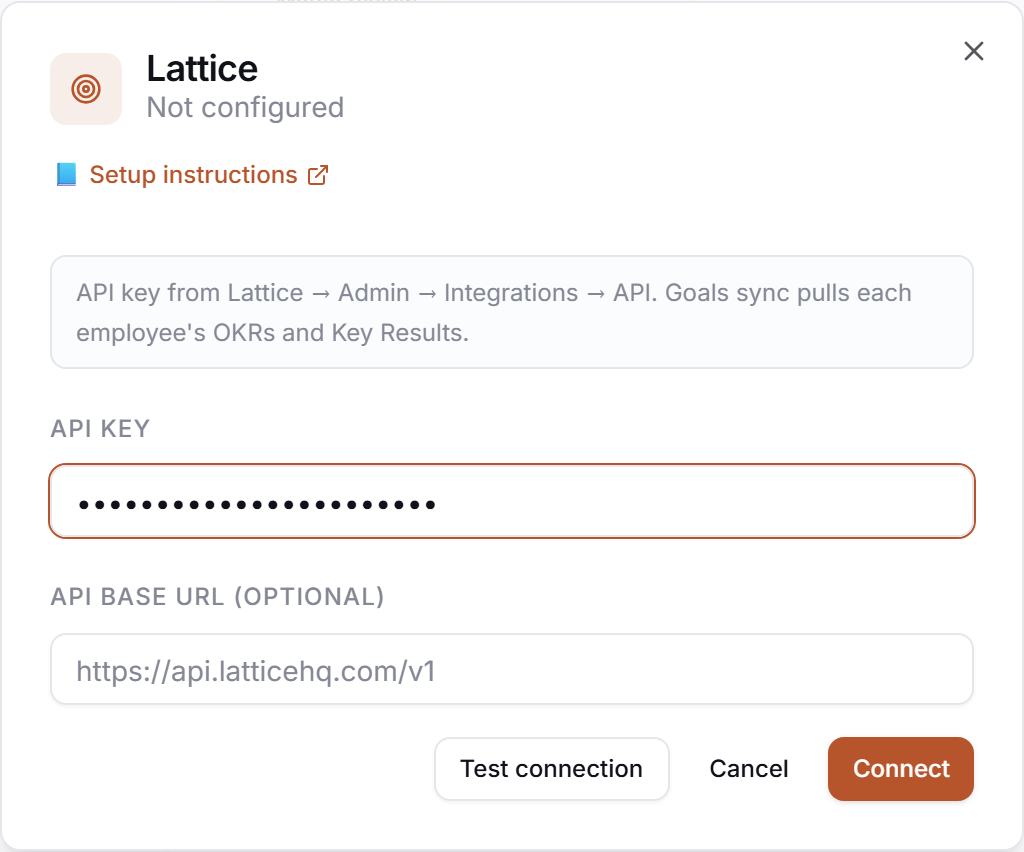
Open Integrations on your PerfCopilot admin.
-
Find the Lattice card and click Connect (or Manage if already configured).
-
Paste each value into the matching field:
Field in PerfCopilot Value from step 1 API token <your value> -
Click Save.
3. Verify
Click Test in the drawer. Expected:
✅ Authenticated as your.name@company.com
If you see a red error, jump to Common errors.
Common errors
| Message | What it usually means | Fix |
|---|---|---|
HTTP 401 | Token wrong or revoked. | Re-generate the token in Lattice Admin → Integrations → API tokens and re-paste. |
HTTP 403 | Token is missing read scope. | Re-generate the token with read scope enabled, then re-paste. |
HTTP 401: <body excerpt> | Credentials rejected. | Re-check that you copied the full token, no leading/trailing whitespace. |
What signals we pull
goals: current goal list per employee
Need a feature you don't see? Tell us →.